Features
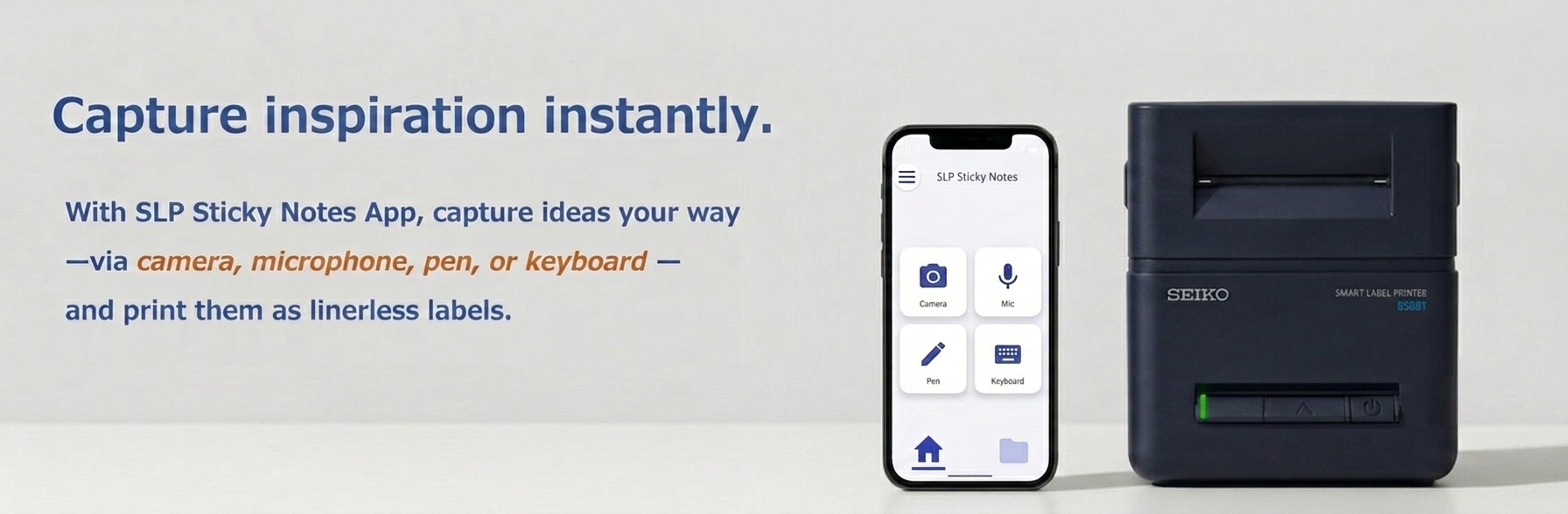
4 Simple Ways to Print Labels
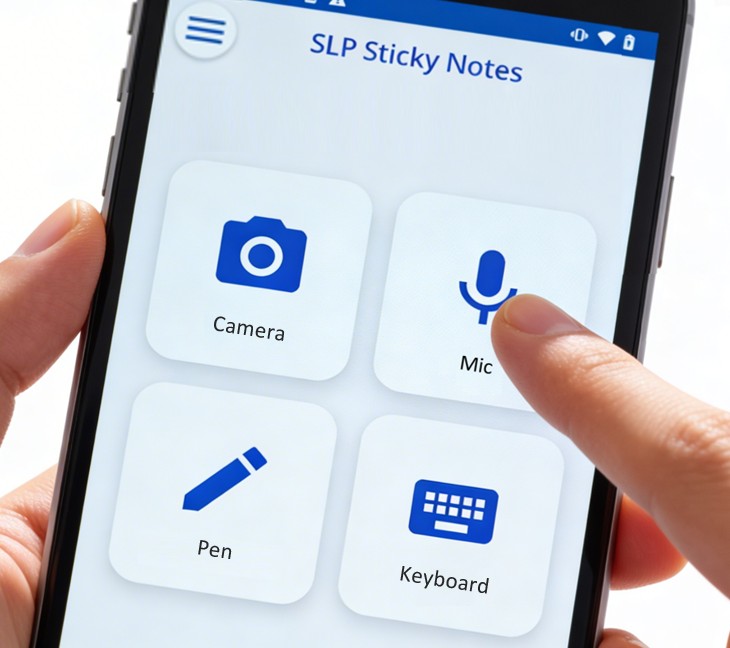
Print labels using the Camera, Microphone, Pen, or Keyboard.
Camera
Turn photos or saved images into labels
Mic
Convert speech into text labels
Pen
Print hand‑drawn notes as is
Keyboard
Create clean lists quickly
To ensure the best print quality, use linerless labels specifically designed for SLP850.
You can purchase the compatible labels from our dedicated e-commerce site.
Learn more in the “Printer & Labels” section.
How to Use
Camera
- Capture handwritten notes or whiteboard content
- Create visual labels for storage bins or shelves
- Snap photos of defects for maintenance logs
- Duplicate existing labels quickly
✔ Create labels instantly from images
Mic
- Phone messages and quick reminders
- Idea capture and hands-free work logs
- Daily shopping lists and task memos
✔ Print text without using a keyboard
Pen
- Sketches and creative brainstorming
- Personalized messages and signatures
✔ Express yourself through handwriting
Keyboard
- Clear and organized To-Do lists
- Kitchen labels and inventory tags
✔ Create accurate, easy-to-read lists
FAQ
Q: Is there a Windows version available?
A: Currently, only Android and iOS/iPadOS are supported.
Q: How do I save my notes?
A: In SLP Sticky Notes Ver. 1.1.0 or later, you can save your notes by tapping the save icon () on the screen. Saved notes can be reopened and printed at any time.
Q: How do I delete saved notes?
A: Tap the folder icon (), then tap the menu icon (︙) in the upper-right corner and select the Select option. Check the notes you want to delete and tap the Delete button. Finally, tap OK in the confirmation message to delete the selected notes.
Q: Voice recognition using the microphone is inaccurate or does not work properly.
A: The accuracy of voice recognition depends heavily on the AI capabilities of the device. Devices with insufficient AI performance are more likely to produce recognition errors.
Q: Can it be used in an environment without internet access?
A: The microphone function requires an internet connection.
Q: Can I print to the SLP850 from other applications, such as the system’s Files application?
A: Printing is possible from applications that allow sharing images or text, such as the Files application. However, this does not guarantee proper operation with all applications.
How to:
-
Share an image or text from the application.
-
▶ For image files
- Open the image in the application and tap the share icon (iOS: / Android: ).
-
▶ For text files
- iOS: Open the text file in the application and tap the share icon ().
- Android: Tap the menu icon (︙) next to the file and select Share.
-
▶ For image files
-
From the list of sharing destination applications, select
SLP Sticky Notes
(
 ).
).
- SLP Sticky Notes launches and the print preview screen is displayed.
- Tap print icon ().
Q: Which linerless labels should I use?
A: Please contact authorized paper vendors directly for purchases, compatible model numbers, and quotes.
System
Supported Printers
- SLP850 Series
Recommended Devices
- iPhone 15 or later
- Google Pixel 8 or later
*Note: The accuracy of microphone-based voice recognition depends heavily on the AI capabilities of the device. On devices with insufficient AI performance, recognition errors are more likely to occur.
Download
For iOS/iPadOS

For Android