Printing Label Function
The label files (*.slex) created using SII Layout Editor can be printed using the SDK.
It also provides the function to replace text data, image data, or barcode data using the label file and print.
SII Layout Editor is software that can create labels.
In this manual, when describing SII Layout Editor, it is referred to as the "app".
The app can be downloaded from the following web page.
- SLP800 series download page
https://www.sii-ps.com/slp850/
In addition, directed to the store directly depending on the app and the app can be installed.
Get App
iOS or Android
By scanning a QR code below with the smartphone, redirected to the store and the app can be installed.
-
iOS
-
Android
Windows
By clicking on the URL below or inputting it into a web browser to go to the store, the app can be installed.
https://www.microsoft.com/store/apps/9P5G2R1PS76W
Note
- "SII Layout Editor" can also be searched and installed in App Store, Google Play or Microsoft Store.
Structure of Label File
The label file is the file where objects are mapped within the print area for the label.
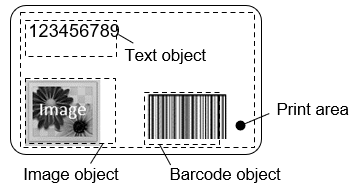
Example of label file (*.slex)
Types of Objects and Support in SDK
Supported objects in the SDK are shown in the following table.
| Object | Description | Label File (*.slex) Source | Supported in SDK | |
|---|---|---|---|---|
| SII Layout Editor | ||||
| iOS/Android | Windows | |||
| Text object | Handle text data | ✓ | ✓ | ✓ |
| Image object | Handle image data | ✓ | ✓ | ✓ |
| Barcode object | Handle barcode data | ✓ | ✓ | ✓ |
| Drawing (rectangle) object | Handle the drawn data of a figures (rectangle) | ✓ | ✓ | ✓ |
| Drawing (circle/oval) object | Handle the drawn data of a figures (circle/oval) | ✓ | ✓ | ✓ |
| Drawing (line) object | Handle the drawn data of a figures (line) | ✓ | ✓ | ✓ |
| Contact object | Retrieve data from the device contact book | ✓ | - | - |
| DateTime object | Handle the data of the date and time | ✓ | ✓ | ✓ |
Precautions for Printing Label File Using SDK
Printing the label file using the app may differ from printing the label file using the SDK. Verify the performance with your actual device in advance.
Note the following when printing label files using the SDK.
1. All object
- The drawing object mapped outside the print area is not supported.
2. Text object
- The "Serialization" is not supported.
- If the font set using the app is not in the system, the text data is printed in the system standard font.
3. Barcode object
- Among the barcodes supported by the app, the following barcodes are supported by the SDK.
- CODE39
- ITF
- CODE128
- UPC-A
- EAN13
- CODABAR
- UPC-E
- EAN8
- EAN128
- GS1 Databar Truncated
- GS1 Databar Stacked
- GS1 Databar Stacked Omni-directional
- GS1 Databar Limited
- GS1 Databar Expanded
- GS1 Databar Expanded Stacked
- Maxicode
- PDF417
- Data Matrix
- QRコード
- The "Serialization" is not supported.
- The barcode setting shown in following is not reflected.
- Ratio of bar width
- The barcode image created using the app and the barcode image created by the SDK may not become the same barcode image.
- If the height of the barcode object is specified to be lower than the bar height using the app, the barcode will be reduced to fit within the object in the SDK and printed.
- When the security of the PDF417 is set to "-1" using the app, it is fixed to "0" in the SDK and the object is drawn.
- If the font set using the app is not in the system, the text data is printed in the system standard font.
4. Drawing object
- The "Field Link" is not supported.
- When "Line Width" is too thin, dashed, long dashed, or double lines may be squished.
- The drawn position of the drawing object may differ between the app and the SDK.
5. DateTime object
- If the font set using the app is not in the system, the text data is printed in the system standard font.
Method for Using Label File
The printing method using the label file is described below.
Print Label File as It Is from Library
- Print command example (Win32)
- 1. Specify label file
- SelectSmartLabelFileW( i_hdl, filepath );
- 2. Print label
- PrintSmartLabelImageData( i_hdl, timeout, 0 );
- Print command example (.NET)
- 1. Specify label file
- StatusAPI.SelectSmartLabelFile( filepath );
- 2. Print label
- StatusAPI.PrintSmartLabelImageData( timeout, 0 );
Replace Object Data in Label File and Print
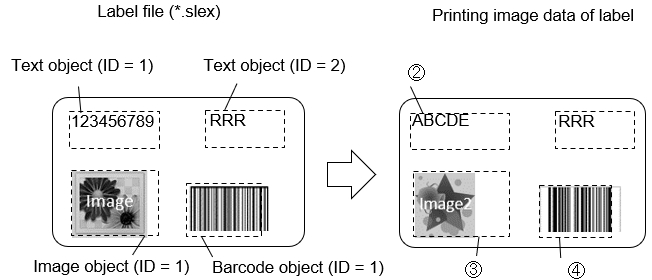
- Print command example (Win32)
- 1. Specify label file
- SelectSmartLabelFileW( i_hdl, filepath );
- 2. Replace text data of label (text object ID = 1)
- ReplaceSmartLabelTextData( i_hdl, 1, textData );
- 3. Replace image data of label (image object ID = 1)
- ReplaceSmartLabelImageData( i_hdl, 1, filepath );
- 4. Replace barcode data of label (barcode object ID = 1)
- ReplaceSmartLabelBarcodeData( i_hdl, 1, barcodeData );
- 5. Print label
- PrintSmartLabelImageData( i_hdl, timeout, 0 );
- Print command example (.NET)
- 1. Specify label file
- StatusAPI.SelectSmartLabelFile( filepath );
- 2. Replace text data of label (text object ID = 1)
- StatusAPI.ReplaceSmartLabelTextData( 1, textData );
- 3. Replace image data of label (image object ID = 1)
- StatusAPI.ReplaceSmartLabelImageData( 1, filepath );
- 4. Replace barcode data of label (barcode object ID = 1)
- StatusAPI.ReplaceSmartLabelBarcodeData( 1, barcodeData );
- 5. Print label
- StatusAPI.PrintSmartLabelImageData( timeout, 0 );
- 1. Specify label file