.NET MAUI Library Integration Guide
1. Introduction
This chapter describes how to integrate SII.SLP.SDK.Maui into a .NET MAUI project.
The steps differ depending on whether you are using Windows (Visual Studio) or macOS (VS Code + CLI).
Please refer to the appropriate section based on your development environment.
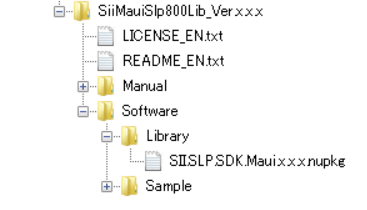
The SII SLP800 Series Print Class Library is distributed as a NuGet package.
The library file name is: SII.SLP.SDK.Maui.x.x.x.nupkg
(x.x.x represents the version number.)
2. Development on Windows (using Visual Studio)
2.1 Prerequisites
Required tools:
- Visual Studio 2026 (Enable the .NET MAUI development workload)
- For Android development: No additional tools required
- For iOS development:
- A Mac with Xcode 26 or later
- Visual Studio must be paired with the Mac as an iOS build host
2.2 Preparing the Library (NuGet Package)
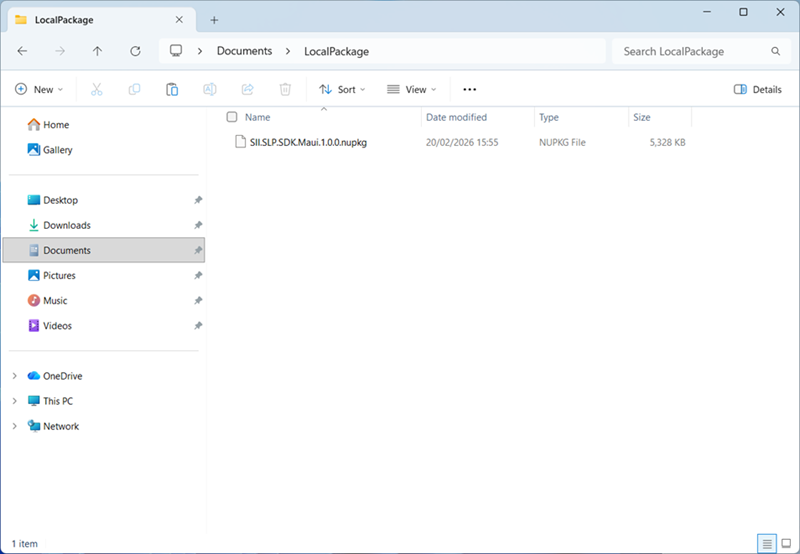
Create a folder named LocalPackage at any location.
Place the file SII.SLP.SDK.Maui.x.x.x.nupkg inside the folder.
(x.x.x is the version number)
2.3 Registering a NuGet Package Source
Launch Visual Studio.
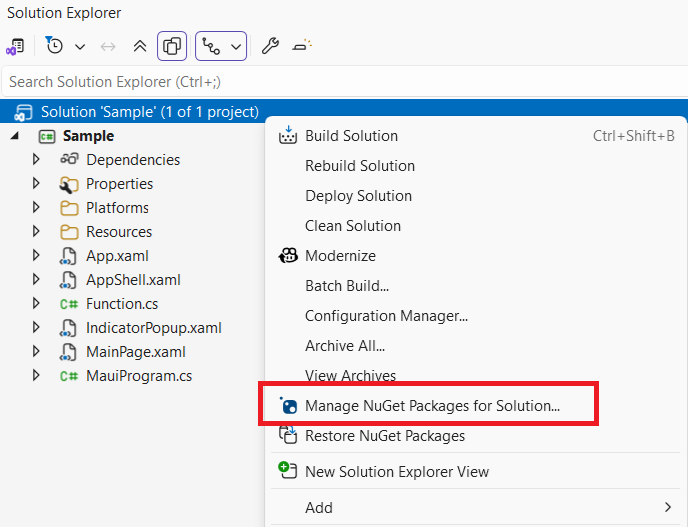
Open "Manage NuGet Packages for Solution".
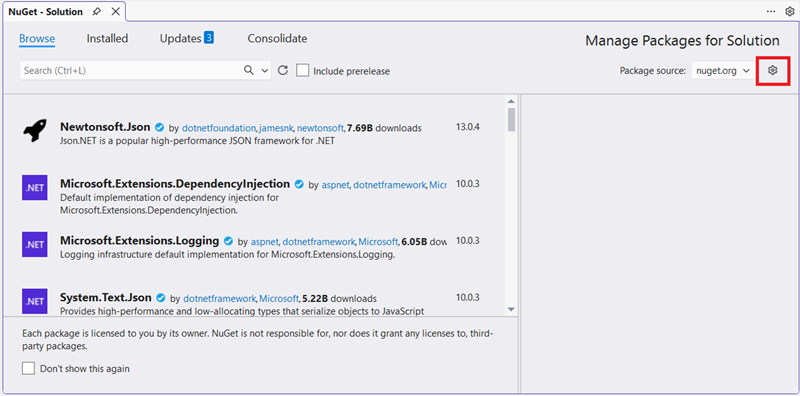
Click the gear icon (Package Sources settings).
Click "Add"(+) to register a new source.
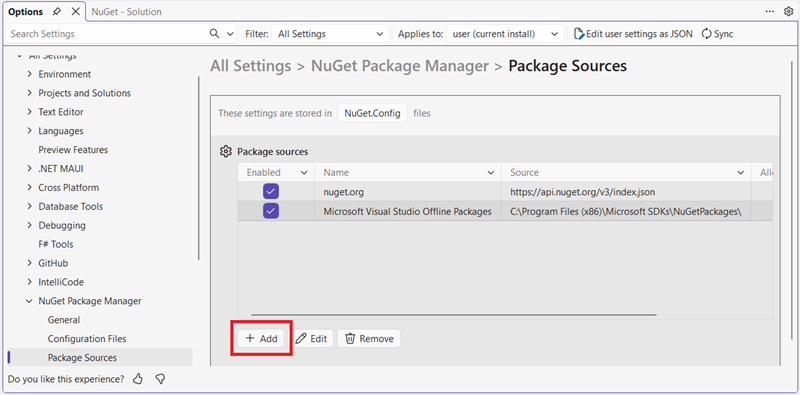
Set the Name to LocalPackage.
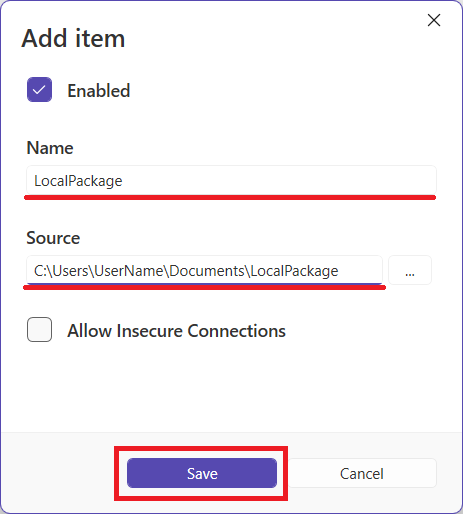
Use the Browse button to select the LocalPackage folder.
Click "Save".
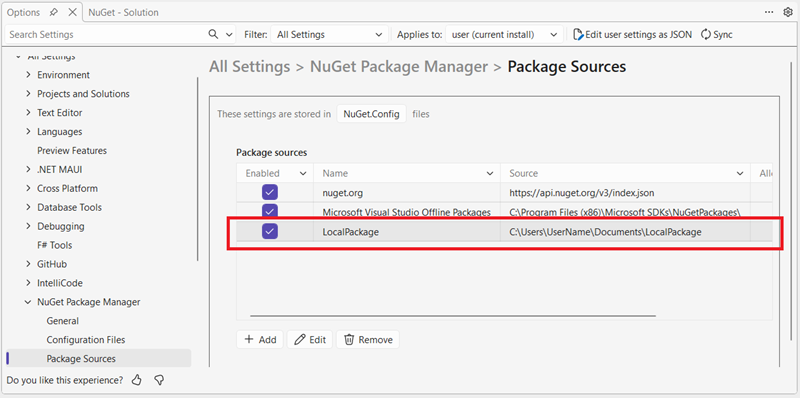
Confirm that the new entry appears and "Enabled" is checked.
2.4 Installing the Library into the Project
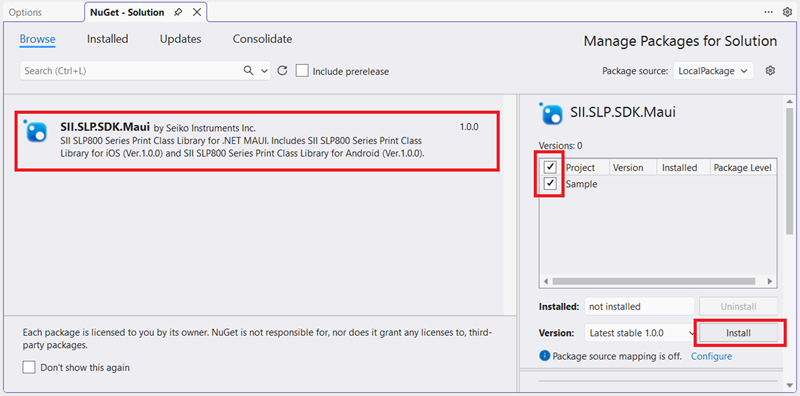
Open "Manage NuGet Packages for Solution".
Change the Package Source to LocalPackage.
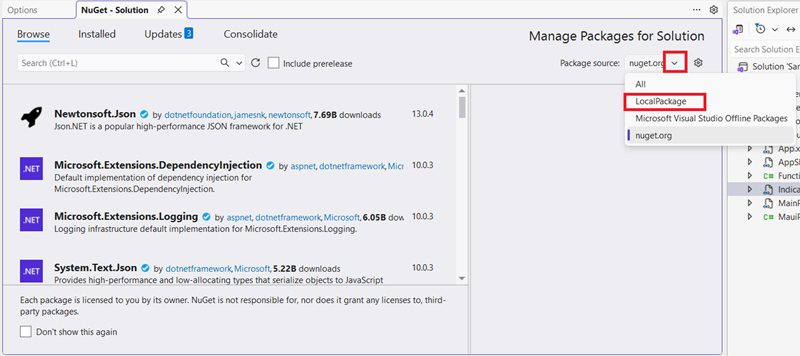
Select SII.SLP.SDK.Maui.
Check the target project(s).
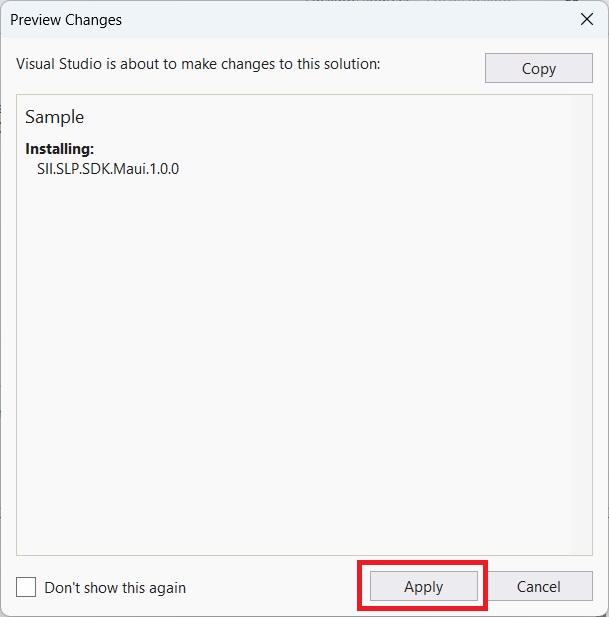
Click "Install" → "Apply".
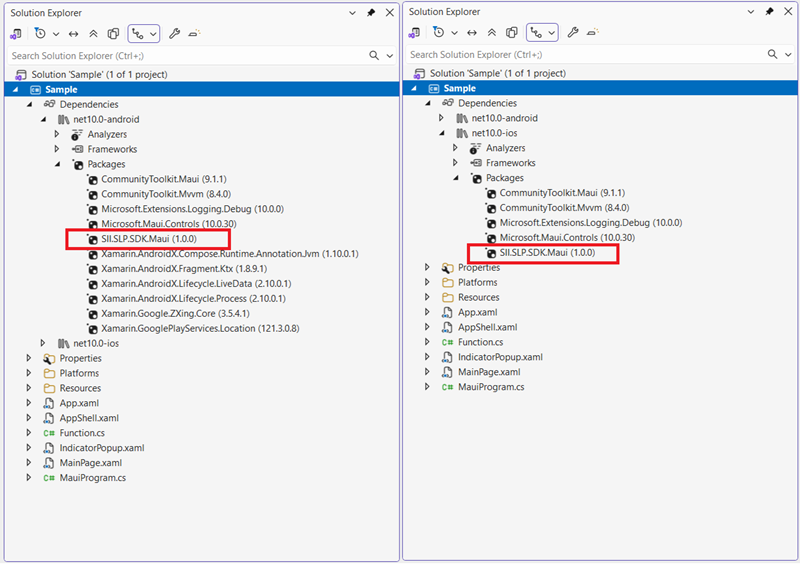
Confirm that the package has been successfully added to the project.
2.5 Platform-Specific Settings
2.5.1 When Developing for Android
■ Configuring Permissions in AndroidManifest.xml
In Solution Explorer, right‑click AndroidManifest.xml.
From "Open With...", Select "XML (Text) Editor", then click "OK" to open the manifest file.
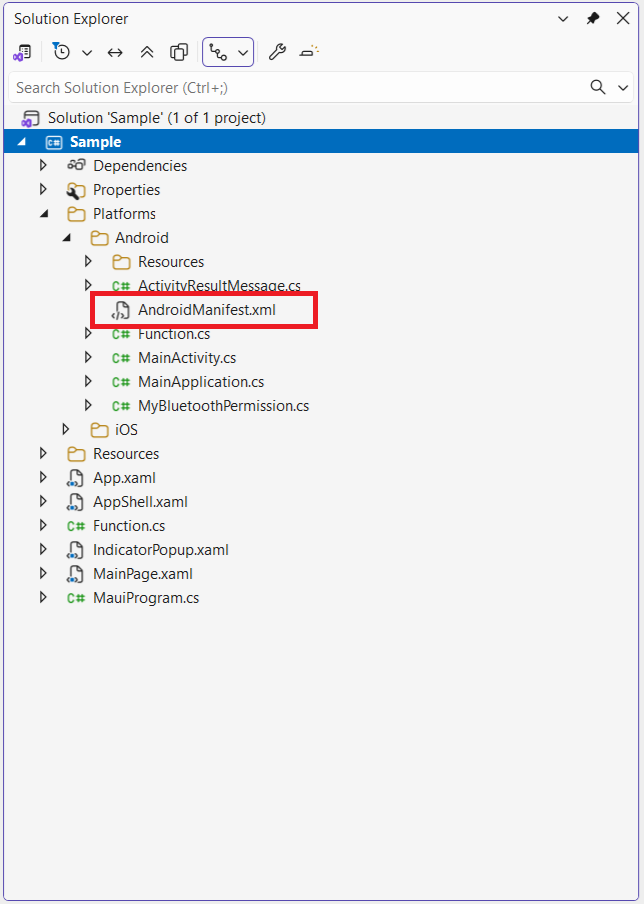
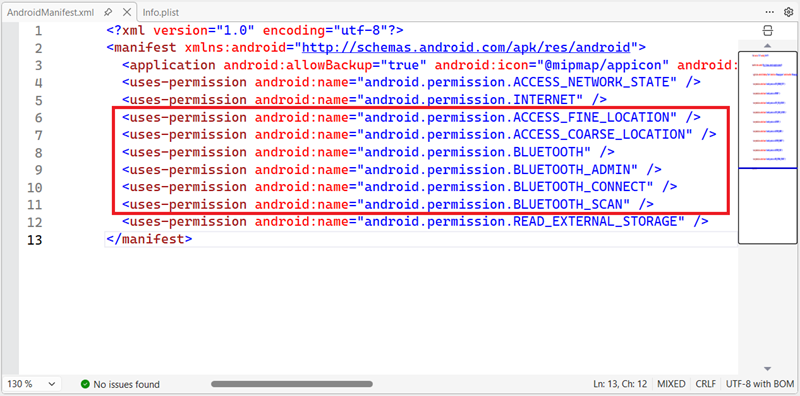
To enable Bluetooth communication, add the following permissions inside the < manifest > tag:
<uses-permission android:name="android.permission.ACCESS_NETWORK_STATE" />
<uses-permission android:name="android.permission.ACCESS_COARSE_LOCATION" />
<uses-permission android:name="android.permission.BLUETOOTH" />
<uses-permission android:name="android.permission.BLUETOOTH_ADMIN" />
<uses-permission android:name="android.permission.BLUETOOTH_CONNECT" />
<uses-permission android:name="android.permission.BLUETOOTH_SCAN" />
■ When Using SIISLP800SmartLabelManager
If barcode parsing is required, install Xamarin.Google.ZXing.Core.
2.5.2 When Developing for iOS
■ Info.plist Settings
In Solution Explorer, right‑click Info.plist.
From "Open With...", Select "XML (Text) Editor", then click "OK" to open the Info.plist file.
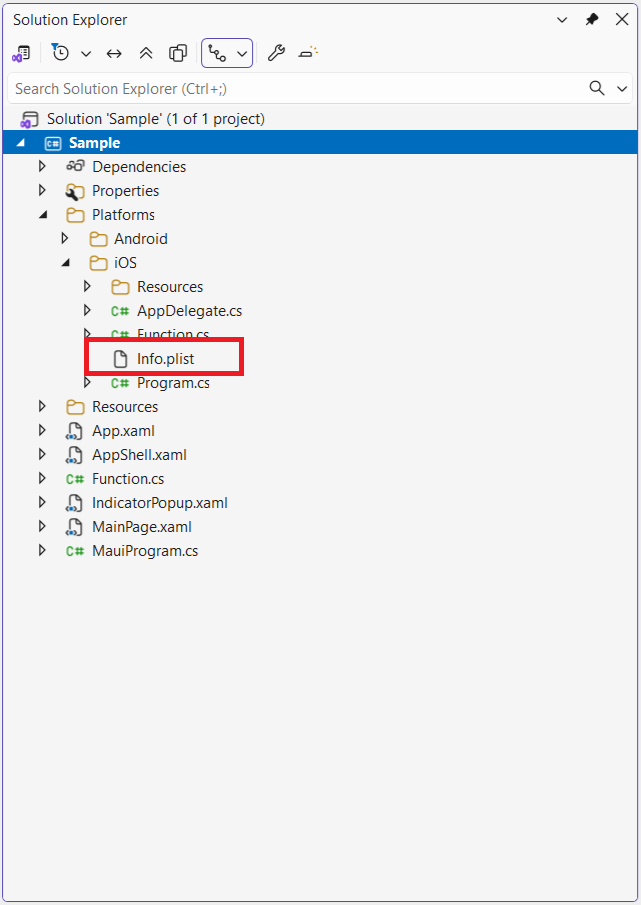
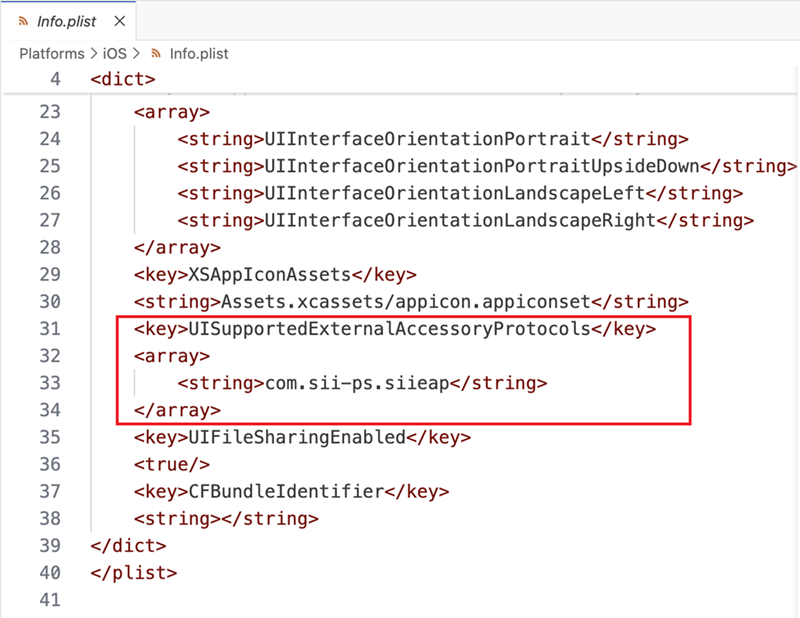
add the following:
    <key>UISupportedExternalAccessoryProtocols</key>
    <array>
        <string>com.sii-ps.siieap</string>
    </array>
3. Development on macOS (using VS Code + CLI)
3.1 Prerequisites
Required tools:
- Visual Studio Code
- .NET SDK
- For iOS development: Xcode 26 or later
- For Android development: Android SDK / Tools
※ Visual Studio for Mac has been discontinued. Use VS Code + NuGet.Config + dotnet CLI instead.
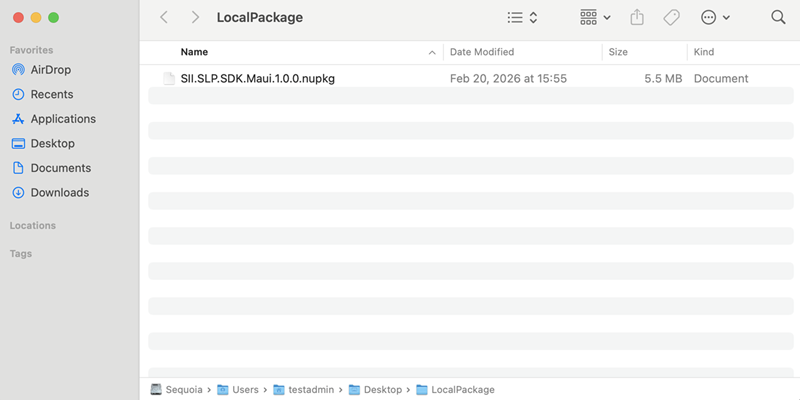
3.2 Preparing the Library (NuGet Package)
Create a folder named LocalPackage.
Place the file SII.SLP.SDK.Maui.x.x.x.nupkg inside the folder.
(x.x.x is the version number)
3.3 Registering a NuGet Package Source (using NuGet.Config)
In the project root directory (same location as the .csproj file), create a file named NuGet.Config.
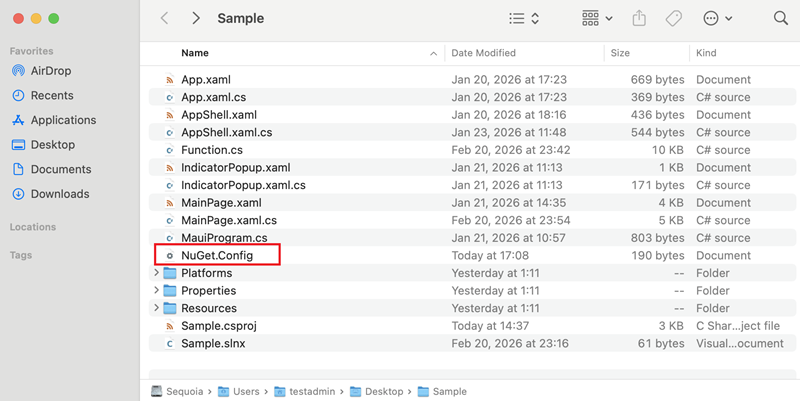
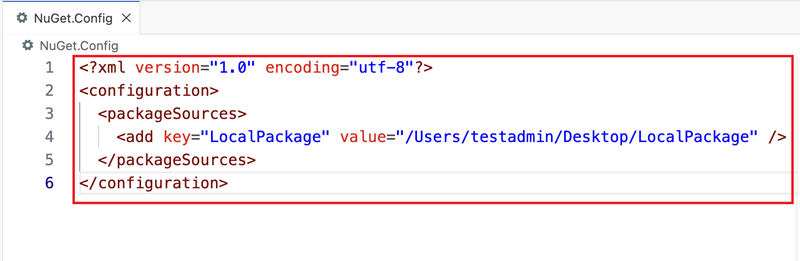
Paste the following template and replace the path with your actual LocalPackage folder:
<?xml version="1.0" encoding="utf-8"?>
<configuration>
  <packageSources>
    <add key="LocalPackage" value="/Users/username/Desktop/LocalPackage" />
  </packageSources>
</configuration>
3.4 Installing the Library into the Project (dotnet CLI)
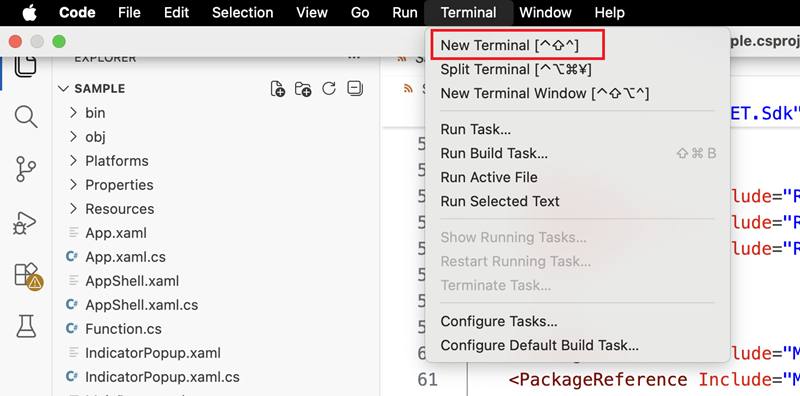
Start VS Code.
From the menu, open
"Terminal" → "New Terminal".
Run the following command:
dotnet add package SII.SLP.SDK.Maui
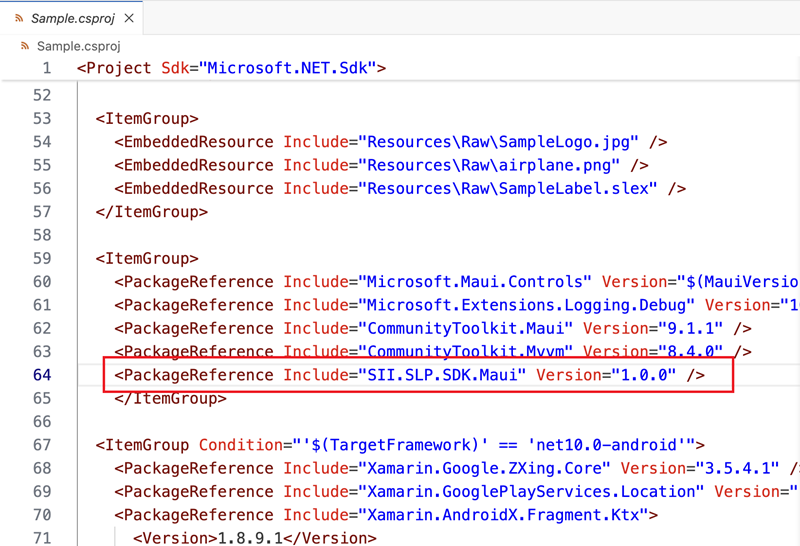
Confirm that the following entry appears in the .csproj file:
<PackageReference Include="SII.SLP.SDK.Maui" Version="x.x.x" />
3.5 Platform-Specific Settings
3.5.1 When Developing for Android
■ Configuring Permissions in AndroidManifest.xml
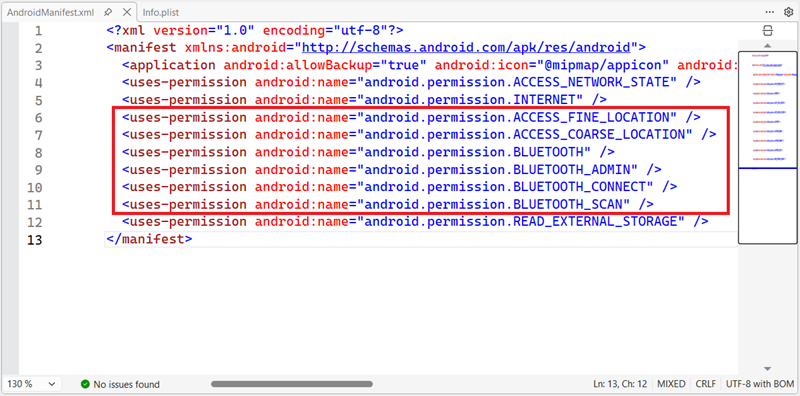
Open AndroidManifest.xml, and add the following permissions as needed
(Bluetooth functionality requires these permissions):
<uses-permission android:name="android.permission.ACCESS_NETWORK_STATE" />
<uses-permission android:name="android.permission.ACCESS_COARSE_LOCATION" />
<uses-permission android:name="android.permission.BLUETOOTH" />
<uses-permission android:name="android.permission.BLUETOOTH_ADMIN" />
<uses-permission android:name="android.permission.BLUETOOTH_CONNECT" />
<uses-permission android:name="android.permission.BLUETOOTH_SCAN" />
■ When Using SIISLP800SmartLabelManager
Install Xamarin.Google.ZXing.Core for barcode parsing.
3.5.2 When Developing for iOS
■ Info.plist Settings
Open Info.plist.
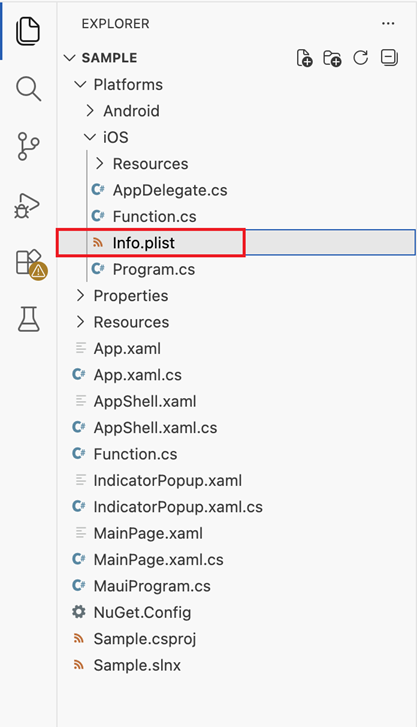
add the following:
    <key>UISupportedExternalAccessoryProtocols</key>
    <array>
        <string>com.sii-ps.siieap</string>
    </array>